Activity Log
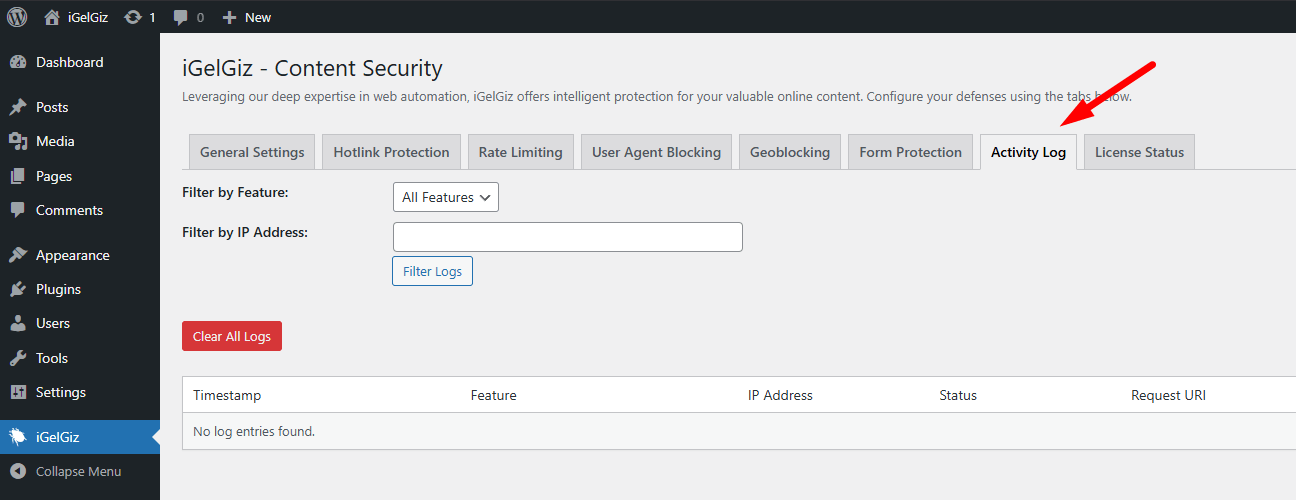
Gain valuable insights into your website’s security and monitor iGelGiz’s actions with the comprehensive Activity Log. This feature records security-related events handled by the plugin, allowing you to see what threats are being blocked, how different features are performing, and troubleshoot potential issues.
Accessing the Activity Log
In your WordPress admin dashboard, navigate to iGelGiz.
Click on the Activity Log tab.
Enabling Verbose Logging
Important: To populate the Activity Log with data, you must first enable “Verbose Logging.” * Navigate to the General Settings tab within iGelGiz. * Check the box for “Enable detailed logging of security events.” * Save your settings.
Once Verbose Logging is active, iGelGiz will start recording events.
Understanding the Log Entries
Each entry in the Activity Log provides key information about a specific event:
Timestamp: The date and time the event occurred.
Feature: The iGelGiz feature that triggered the log entry (e.g., “Rate Limiting,” “User Agent Ban,” “Geoblocking,” “Form Protection (Honeypot)”).
IP Address: The IP address of the visitor/bot involved in the event.
Status: The outcome of the event, typically indicating if access was blocked and the HTTP status code returned (e.g., “Blocked (403)”).
Request URI: The specific URL/path the visitor/bot was trying to access.
Details: Additional information specific to the event. This might include: * For Rate Limiting: The count that triggered the block, configured limit. * For User Agent Ban: The matched banned User Agent string. * For Geoblocking: The detected country code. * For Form Protection: The reason for blocking (e.g., decoy field filled, JS token validation failed) and submitted form parameters (sensitive data may be redacted or not logged).
Features of the Activity Log Viewer
Filtering Logs
Filter by Feature: Use the dropdown menu to view logs only for a specific iGelGiz feature. This is helpful for focusing on the activity of a particular protection mechanism.
Filter by IP Address: Enter an IP address (or partial IP) to see all logged events associated with that IP. Useful for investigating suspicious activity from a specific source.
Clear Filters: A button to easily reset any active filters and view all logs.
Clear All Logs
What it does: A button to permanently delete all entries from the Activity Log.
Why use it: * Database Management: If Verbose Logging is enabled for extended periods on a high-traffic site, the log table can grow. Clearing logs periodically can help manage database size. * Fresh Start: Useful after resolving a particular issue or when you want to start monitoring with a clean slate.
Confirmation: You will be asked to confirm before the logs are cleared, as this action cannot be undone.
Pagination
If you have a large number of log entries, they will be paginated for easier viewing. Use the pagination links at the bottom to navigate through the log pages.
Why the Activity Log is Valuable
Monitor Threats: See what kinds of attacks or unwanted activities iGelGiz is preventing.
Understand Plugin Actions: Verify that features are working as expected.
Identify Attack Patterns: Notice recurring IPs or User Agents being blocked, which might indicate targeted attacks.
Troubleshooting: If a legitimate user reports an issue, the log might provide clues as to why they were blocked.
Peace of Mind: See tangible evidence of how iGelGiz is protecting your site.
A Note on Verbose Logging: While incredibly useful, remember that continuous Verbose Logging on a very active website can lead to a significant increase in database size over time. It’s recommended to: * Enable it when you actively want to monitor activity or troubleshoot. * Consider clearing the logs periodically if you keep it enabled long-term. * Disable it if you are concerned about database growth and don’t need constant detailed logging.
The Activity Log is your window into the security operations of iGelGiz, providing transparency and actionable data to help you maintain a secure and well-performing website.